


How Long Do Used Phones Actually Last? Realistic Lifespan by Brand
Phones don't die, they expire. The four clocks that end a phone's life, how long each brand realistically lasts, and which limit you'll actually hit first.
Read More




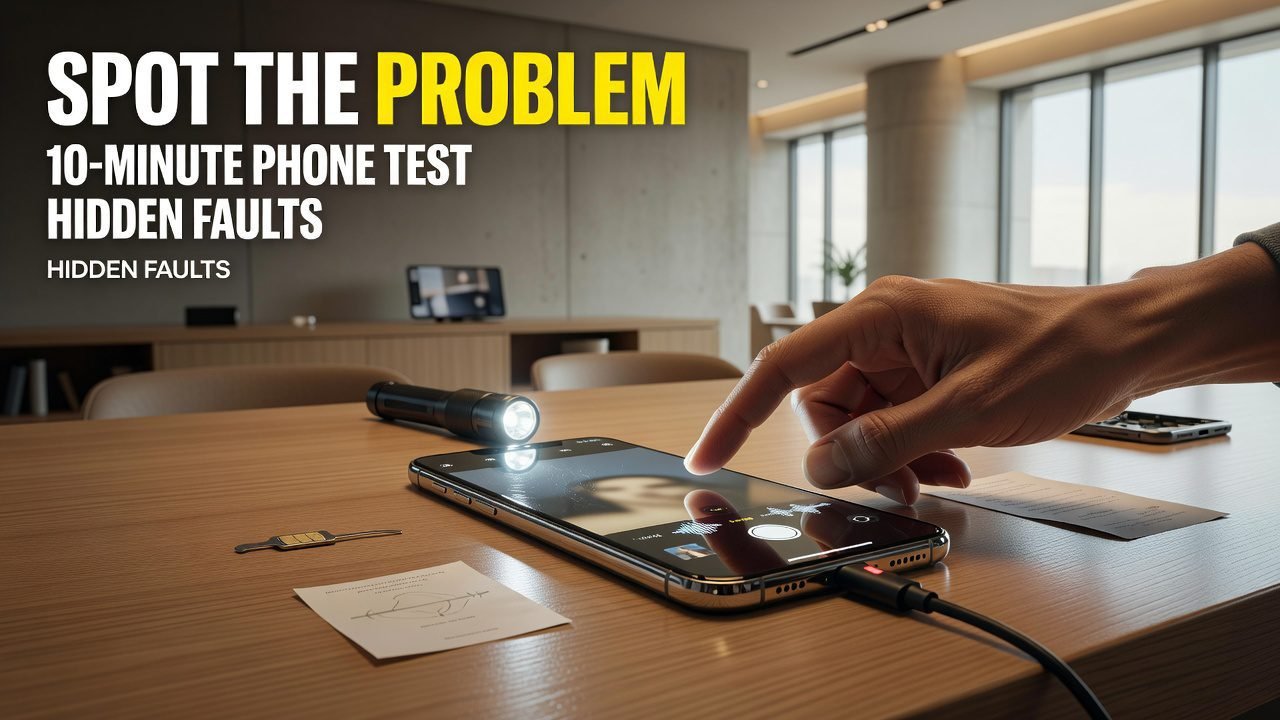
Most buyers spend their inspection time on the two things that are easiest to see: the screen and the battery percentage. Both matter. Neither is where the unpleasant surprises live.
The unpleasant surprises are a proximity sensor that doesn’t blank the screen during calls, so your ear hangs up on people. A bottom microphone that sounds fine on voice notes and muffled on actual calls. A region of the display that registers taps you didn’t make.
None of those show up in photographs. All of them are testable in well under a minute each.
This is the fault-focused companion to our fifteen-point inspection checklist — that one covers identity, paperwork, and provenance, and this one covers whether the hardware actually works.
On Samsung phones, dial `#0#`. A hidden service menu opens with individual hardware tests: solid red, green and blue screens, a touch grid you trace with a finger, speaker, receiver, vibration, sensors, and more. It compresses about half this list into ninety seconds and it’s the single most efficient thing available on any phone.
On Pixel devices, a diagnostics tool is available through the device’s support or help section, covering a similar range of components.
On iPhone, there’s no user-accessible equivalent, so you run the tests manually. The list below is written for that case and works on any phone.
Ordered so the tests most likely to find something come first.
Full white at maximum brightness, then solid black, then solid grey. White reveals dead pixels and yellowing. Black shows backlight bleed and pressure marks. Grey exposes burn-in — ghosting from a status bar or navigation buttons — which is invisible on every other background and invisible in listing photos.
Open a notes app and drag one finger slowly across the whole screen in an S-pattern, watching for the line breaking. Then leave the phone flat and untouched on the table for twenty seconds with the notes app open. Characters appearing on their own are ghost touch, usually from a failing digitizer or a poorly fitted replacement panel.
Place a call — to your own phone is fine — and cover the area above the earpiece with your hand. The screen should blank immediately and return when you move away. A failed proximity sensor means your cheek operates the phone during every call, and it’s one of the most irritating faults to live with.
Not a voice memo. Actually call someone and listen. The earpiece is a separate component from the loudspeaker and fails independently.
Record a voice memo, play it back, and listen for muffling or crackle. Then have the person on your test call confirm they can hear you clearly — the call path sometimes uses a different mic than the recorder does.
Play music at maximum. Crackle, buzz, or distortion at high volume points to a damaged driver or debris in the grille. Quiet playback hides all of it.
Main, ultrawide, telephoto, and front, in both photo and video mode. Cracked glass over one lens produces flare that only appears on that lens. Check that autofocus locks quickly rather than hunting, and shoot one frame in low light — a haze or spotting that cleaning doesn’t remove usually means moisture has been inside.
Plug in and check the estimated time. A phone that should charge fast and reports six hours has a port, cable, or board problem. Wiggle the cable gently while it charges and watch for the connection dropping. Then look into the port with a light — compacted lint is common and free to fix; green or white residue is corrosion and a different conversation.
If the model supports it. A failed coil is invisible any other way, and it’s not repairable cheaply.
Add your own fingerprint and your own face, then test each several times. Watching the seller’s finger work proves their finger is enrolled. Under-display sensors degrade, and one that reads the seller reliably may read you half the time — particularly on phones with replacement screens.
Power, both volume directions, and any dedicated button. Press each several times. Mushy, unresponsive, or double-registering buttons are common on older devices and annoying daily.
Set a silent notification or toggle silent mode. A rattly or absent vibration is usually a loose motor.
All three, with your own SIM in the phone. Connect to a network, pair with your own earbuds or another phone, then disable Wi-Fi and load something over mobile data. Radios fail independently and a phone can have perfect Wi-Fi and a dead cellular modem.
Open a maps app and watch the position dot settle. A dot that wanders, or a compass arrow spinning without direction, points to a sensor or antenna fault — frequently a sign of an earlier repair done badly.
Rotate the phone and confirm the display follows. Also try the level or compass utility if the phone has one.
The one people skip, and it’s worth the time. Run something demanding — a graphically heavy app, or record 4K video for two minutes — and hold the phone. Uncomfortable heat, rapid battery drop, or the screen dimming on its own indicates throttling, a tired battery, or degraded thermal paste. A phone that seems fine at idle can be unusable under real work.
If you’re pressed, run them in this order and stop when you run out of time. The early ones find the most.
| Minutes | Tests |
|---|---|
| 0–2 | Three-colour screen, ghost touch |
| 2–4 | Proximity, earpiece, mic, loudspeaker |
| 4–6 | Cameras, charging, wireless charging |
| 6–8 | Biometrics, buttons, vibration |
| 8–10 | Radios, GPS, rotation, thermal load |
Screenshot that table before a viewing. Ten minutes sounds long until you’re doing it, at which point it’s mostly waiting for a video to record.
Half these tests fail because the buyer didn’t bring something.
Your own SIM. The only way to confirm the cellular radio and a real call. Non-negotiable.
Your own charger and cable. Testing with the seller’s cable tests the seller’s cable.
Your own earbuds or a second Bluetooth device. For pairing.
Your own phone, charged, with data. For the test call, and for running lookups on the spot.
Somewhere with light and a power outlet. A café table beats a car park by a wide margin, and it isn’t an accident when a seller prefers the car park.
Ten minutes of testing needs about two minutes of preparation, and skipping the preparation is what turns a thorough inspection into a hopeful one.
Worth knowing so you’re not hunting for a menu that doesn’t exist.
Diagnostics access. Samsung’s service menu and the Pixel diagnostics tool compress much of this list into a guided sequence. iPhone has no user-facing equivalent, so every test is manual.
Repair history. iPhones from roughly the XR and XS generation onward log replaced components in Settings > General > About, which tells you whether a fault might be repair-related before you start testing. Most Android phones don’t, so you infer from physical evidence.
Battery reporting. iPhone exposes maximum capacity directly, and recent generations add cycle count. Android varies by manufacturer — Pixel exposes cycle count natively, Samsung routes it through its Members app, and some brands surface nothing at all.
Biometrics. Face-based systems on iPhone are frequently the casualty of a bad screen repair. Under-display fingerprint sensors on Android are frequently the casualty of a replacement panel. Different components, same underlying cause, and both worth testing with your own enrollment.
Faults are a price conversation, not automatically a walk-away. Rough guidance:
How long does a proper fault test take?
About ten minutes for all sixteen once you’ve done it a couple of times. The Samsung service menu compresses roughly half of them into ninety seconds.
What’s the most commonly missed fault?
The proximity sensor, because nobody thinks to place an actual call during an inspection. A failed one makes every phone call frustrating.
Can I test all this without my own SIM?
Most of it, but not the cellular radio or a real call. Bring your own SIM — it’s the only way to confirm the phone works on your network.
Is ghost touch fixable?
Usually only by replacing the display, which is one of the more expensive repairs. On a device that logs repair history, a genuine replacement matters for resale.
What if the phone gets hot during the thermal test?
Some warmth is normal under sustained load. Uncomfortable heat combined with rapid battery drain or automatic dimming suggests a tired battery or a thermal problem worth investigating before you offer.
Can I run these tests on a phone that’s still signed into the seller’s account?
Most of them, yes — screen, speakers, cameras, buttons, and charging all work regardless. Biometrics need your own enrollment, which means the phone should be erased first, so leave those until after the seller has signed out.
What’s the fastest useful test if I only have two minutes?
Three-colour screen check, then a real phone call with your hand over the proximity area. Those two cover the display and the two faults people most often discover after buying.
Should I walk away if I find one fault?
Usually not — most single faults are cheap repairs and a fair reason to negotiate. Multiple faults at once are a different signal, and worth treating as one.
Screenshot the running-order table and use it at your next viewing, even on a phone you’re already sure about. The test that saves you is rarely the one you expected to matter.
Ready to shop? Browse listings on ExploreFrag, and check the water damage signs alongside these — several faults on this list share that single cause.
Emran Ahmed is the founder and CEO of ExploreFrag, a marketplace for buying and selling used phones and accessories across every brand. The proximity sensor test made it onto this list because a buyer once described spending three weeks assuming his callers kept hanging up on him. He reviews listings most days and runs the grey-screen check on every phone he handles.


